December Daily "In Quotes" - Final Week

I'm done!!! I really loved doing this project but I'm happy I'm done. I'm really looking forward to printing this....now if I can only figure out how I want to print it. Anybody have any suggestions?

So let me review with you the last few days leading up to Christmas in case you missed it on facebook.
Oh, & be sure to check out Week 1, Week 2 & Week 3 if you missed those.

Can you tell she could hardly wait for Christmas?

I should have recorded her singing this. It was adorable!

This is our Emmie. She didn't even hesitate when she said this. We sponsor two girls through World Vision. Each year the girls browse the World Vision Catalog to figure out what they want to "buy". Then they make up a chart & raise the money by doing odd jobs around the house during the month of December. Emmie wanted to give her "tooth fairy" money away.

She sounded so mature when she said this & it just got me to thinking.....

Truly! You should have seen the light in her eyes when she said this. It's like it clicked. She knew that He is the reason!


If you all did a December Daily Album I would love to see it. Just hook me up to your gallery or blog. I'll take a look later this week.

I won't have any releases this week. I've been taking a much-needed break from designing.

I'll be back next week with some new stuff for you all! 

December Daily "In Quotes" Week 3

Do you want to see more of my December Daily "In Quotes" pages? Well, that's what I'm going to show you today. And here some links to remind you of my little project. Week 1, Week 2 and here's a Freebie & Tutorial to help you get started, well okay, maybe not to get started, since it's well into December BUT grab the freebie, learn how to resize your templates & you can use the templates for almost anything.

Here goes.

Ah, the oblivious child. I think every family has one....or should have one. It's quite cute.
I think I have to agree. Hot chocolate is too hot!

Melt my heart.

It's like she's making us feel guilty for telling her the truth about Santa.

I'm not going there.

Sisters. :)

My daughter did indeed eat Frosty's head & she told me it was delicious.

Maybe I shouldn't have put the Christmas tree up until the day before Christmas.....but what's the fun in that?


I can't believe I only have 5 days left! I'll be back next week, after Christmas (shwew!), to show you my last few pages.

And remember, even if you don't do a daily page or daily photo or daily whatever.....at least jot down some of your memories. You can scrap 'em later, after the holidays, when things aren't so crazy, right?

Resizing a Card Template Video Tutorial with FREE Templates!

As promised here's a little video tutorial to show you how to resize a template. This is just a basic tutorial (I'm using Photoshop CS3) that will show you how to turn a 4x6 into a 5x7, 4x8 or even an 8x8. Ultimately you could take any size template and adjust it to make any size that you wanted A rectangularly shaped template may need more adjusting if you try to change it into a square design. It all depends on the design of the template.


Here are the FREE 4x6 card templates. I created them based off of the December Daily "In Quotes" pages that I've been making. Feel free to just use these as photo templates too. All you have to do is remove the journaling part & place a photo there instead. Just click on the pic to download.


Let me know if you have any questions.


December Daily "In Quotes" - Week 2

I'm back to show you my December Daily pages from this past week. If you missed my post last week about what I'm doing you can read about it here.

I left off on day 6. So here we are starting on day 7. Day 7's quote had me in tears. Kyla cannot wait until we go get her little baby sister. She's ready to have a playmate & someone that will be her best friend. For those of you who might not know we are going through the adoption process. Read more about that here.


This was just the most precious site I ever saw. I really should have taken a picture.


Oh, the joys of having a 4-year-old redecorate the Christmas tree!


Check out Andrew Peterson's Behold the Lamb of God Album. It's not your traditional Christmas music but it tells  "the true tall tale of the coming of Christ".


My hubby & I got to do a little Christmas shopping by ourselves followed by a nice little dinner.


Emmie likes to make me laugh!


That's it for now but make sure you stop by the blog tomorrow for some FREE template based off of my December Daily pages. Plus there will be a video tutorial to go along with the card templates.


December Daily "In Quotes"

Here's my little twist on December Daily. If you don't know what December Daily is you can check out Ali Edward's projects. It's basically documenting 1 story for every day leading up to Christmas. You can do it through pics, scrapbook pages, journaling, etc... Whatever works for you.

Anyway, since I knew taking daily pics was just not going to work for me, (believe it or not I'm horrible at remembering to take pics every day) I decided to do my pages with quotes. I'm trying to write down a quote from one of my girls every day & then scrapbook it on a 4x6 card. I think I'm going to end up with a really nice little album that I'm going to love reading every Christmas. I'm still trying to decide how I might print it out. I'll let you know what I decide to do.

So here are my pages so far.
I've chose Magical Christmas by Jady Day Studio & Flergs to scrap all of my quotes.


For those of you who might be wondering what Window Wonderlands is, it's an event where our little town decorates the downtown area & people sit in the windows of the little shops and are dressed up in old-timey costumes. The little businesses have hot cider, hot chocolate and cookies. There's music & even carriage rides. We've gone every year since we've lived here. I love the tradition.


On Day 5 I didn't get a quote but as I was pre-making my page hoping to hear something from my little girls I heard my hubby reading to them. It was perfect.


I should mention that Lucy is our cat, for those of you who might be wondering who Lucy is.

So that's what I have so far. I'll be sharing my pages weekly on my blog but if you want to see daily updates make sure you check out my facebook. I've been trying to post them there at the end of each day.

And Anita wanted to know if I was going to be making these into templates & selling them. Since I don't have time to put together a whole album right now I think what I'll do is turn a few of them into templates & then just give them away here on my blog & facebook for free! Sound good? I'll keep you posted.

Also, my friend Kami has a little December Daily freebie on her blog. It will help you with your daily pages or photos. Plus you might want to check out her December Daily photos for inspiration.


That's it for now!


2 NEW Video Template Tutorials

I scrapped this page last week with my new Play a Game Templates.
Click on the image for full credits.

Here is what this template looked like before I started. Quite a bit different.

So I thought I would show you how I changed it up.
Here ya go! I'm using Photoshop CS3.


That's not it. I also made my Christmas Card. I showed you last week. With my new Christmas Card Templates. Here it is in case you missed it.


And here's the template before I started. As you can see I changed the photo spots a bit.
So here's another little video tutorial showing you how to do that. Plus I threw in a little tutorial showing you how I copy my layer styles.


Hope this helps you a little!


Baby Shower - Digital Scrapbook Style

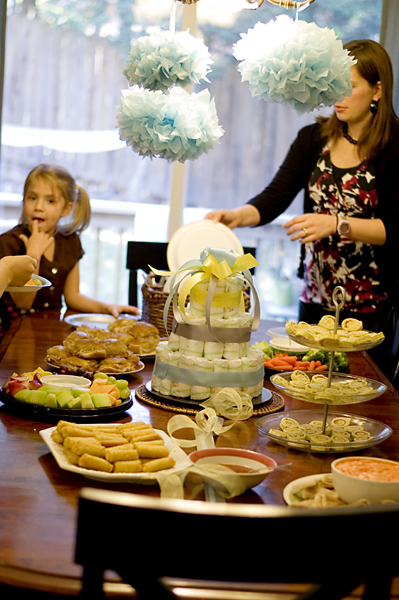
I hosted a baby shower for my wonderful sister-in-law this weekend. I love hosting baby showers. I don't know why, but they are my favorite kind of party. I think it reminds me of those special times when I had my babies & wonderful friends wanted to help me celebrate each time I welcomed a new little baby into our family.

You know me & my digital scrapbook love. So, of course, I had to incorporate it into the baby shower somehow. The VERY first thing I did before I planned anything was to go find a digi-kit to get some inspiration. I found this beautiful kit from Tracie Stroud. I knew that I wanted to incorporate blues, yellows & greys into my decorations so this kit was perfect!

Kit no longer available.

Then I made this invite with the kit. It's a 5x7. I got it printed from Persnickety Prints on their pearl stock paper. Let me tell you, it was gorgeous! It looked like I had made some fancy shmancy invites. I displayed the invite at the shower....mainly because it was supposed to be a surprise shower & my SIL hadn't seen the invites yet.


And look at that cake my sister made! It goes perfectly with the kit & invite.  I should mention that this surprise baby shower was all my sister's idea. She mentioned it to me & I ran with it (with help from her). Can't believe I didn't think to do it first!


Then I made a "guess the birth date" calendar. I made a 12x12 page in photoshop, had it printed at Persnickety. After I got it back I decided it needed a black border. So I trimmed off a little bit of each side and matted it on 12x12 black cardstock. Then I punched out little some little circles. Thank goodness I kept my Creative Memories Circle Punchers back from my traditional scrapbooking days! My idea was that people would write their name & then stick their circle (I even had some leftover Creative Memories double sided sticky things that I put on the back of each circle) on the day that they thought the baby would be born. So I made this page, got it ready a few weeks early & guess what?!? To our surprise little baby Sawyer was born 5 weeks early! Thank goodness everyone is doing well. Mom & baby were both at the shower! So needless to say I didn't even need this....but you know what? I put it out at the shower anyway just because it was so cute!


We played guess the clothespins.

I made these up with Tracie's kit. Everyone filled one out & mommy can save them for the baby.
I found this idea here at Babble.com. And don't look too closely or you might notices the I repeated one of the phrases....& it's pretty ironic the one that I repeated!


A game I made with Tracie's kit! Another one found at babble.com (the internet is a wonderful thing!). Everyone filled out the phrases & whoever matched the most phrases with the mommy won a little prize.


 Some decorations. Banner made with Tracie's kit & my mini-hybrid banner templates.

I found these at Hobby Lobby. Cute!

Food. What's a party without food? This is the area where I like to delegate! Lots of people helped me make food. Thanks to all that helped!

This was also supposed to be at the party. I found this cute idea on pinterest. I kind of put my own twist on it & it turned out really cute: a bouquet of flowers, diapers, socks, onesies, etc... I ended up bringing it to the hospital when my SIL had her baby. He came early & I didn't want to go empty-handed. I already had this made for the shower so I thought it would be perfect to take to the hospital.


Anyway, I just HAD to share all the fun hybrid digi-stuff (& other stuff) I made for her shower.
Hope it inspires you to personalize your parties with some digi-scrapping supplies.


Video Tutorial: How to Add a Photo Spot

It's time for another video tutorial. I know I promised this one a while back. This is a basic tutorial that will help you add a photo to a template. Sometimes you have a great template, with a great design but you just need another photospot. Well, this will help you do that.

I'm using Photoshop CS3 in my video tutorial & the template you see is a new template that you'll see in my store this weekend!


And here's my finished page with the four photo spots. Look at all those fun photos!

Layout Tips: Lesson 4

Welcome back to the last little lesson (actually it's a tiny lesson today) in our Layout Tips series. I hope you've learned a little something from them.

Be sure to check out Layout Tips: Lesson 1, Layout Tips: Lesson 2, & Layout Tips: Lesson 3 if you haven't already.

Today I'm just going to share with you a few final tips from my CT that should help you with your digital scrapbook pages.

Tiff: I'm pretty picky with text spacing - the line spacing, especially when it is on top of journaling lines. And I tend to space my lines further apart, especially for handwritten fonts. So in my character window, I play with the leading value until I get it right. And I'll often type in values that are not listed in the pull-down menu.

Layout Tips - Lesson 3

Welcome back to another layout lesson. This is the third lesson in a little serious I'm doing about making your layouts really look great. Today's lesson is about sharpening your layouts before posting in galleries. You can look back at Lesson 1 here (about photos) & Lesson 2 here (about shadows).

Now onto this week's lesson. These are all tips from me & my CT. I'll just go ahead and post what they said about sharpening & saving your pages for web.

Kristi: I ALWAYS sharpen my layout after resizing for the web. (in PSE 7: Enhance>Unsharp Mask>use these settings: 85%> radius of 1.0 px>4 level threshold) I learned this trick from Stephanie a.k.a. Nanie's Designs.

Tiff: I have also recently started sharpening my web-sized layouts. I use the procedure in this post from The Daily Digi.

Layout Tips - Lesson 2

I'm back to share with you some tips on using shadows on your digital scrapbook pages. These are tips from me & my creative team members. You can read last weeks lesson here: Layout Tips: Lesson 1. That lesson is all about photos on your pages.

I'm just going to go ahead and start & share with you what everyone shared about shadows.

Me: Shadows can make or break a layout. I've read a few tutorials on shadows & this is one of my faves. Tiffany pointed me to Peppermint Granber's shadow tutorial. It really is great & if you want to take it to another level you can taker her class over at Big Picture Classes.  There's also a great tutorial over at the Digi Files about warping shadows. This is a newer tutorial & I haven't been able to implement it because, sadly, I have not scrapped since September 24th but I'm totally going to try it next time I make a page (which will hopefully, be later tonight after I finish this blog post).

Tiff: One tip I might say for shadows, using the smudge tool, is that I've found that I like my results better when I use a larger distance for the shadow but then when I smudge it, I pull parts of the shadow back toward the element. I find this looks better than trying to pull parts of the shadow away from the element. (She's referring to Peppermint's tutorial above).

For those of you who use PSE and you can't get the shadow on its own layer like posted in the tutorial above, Tiff shared this way of getting your shadow on its own layer.

1. While your Shadow Settings window is OPEN (and you've selected a size for the shadow) take your mouse and move it over into the canvas area. Click and drag your shadow away from the element, so it is a decent distance away. Click ok to close the shadow settings window.

2. Now the element and shadow are on the same layer but are far apart.

3. Drag a selection around the shadow to select it. Go to the menu items (or use a key combination) which will cause that selection to be cut and placed on its own layer. This is the part that I'm not sure the exact commands, but I'm sure you can find it with a little experimentation or googling.

4. Now with the shadow on a separate layer, just move it back under the element (and move the shadow layer to be below the element layer). You can now tweak the shadow with the smudge tool. You might even be able to change the blend mode to linear burn, I'm not sure about that, though.

Jenn: I am a fan of shadows. Love that stuff... I have actions and styles that make life easier. When you find a shadow that you created, SAVE IT! I save sooo many... but then it is easier to work off of that base shadow. Really, I have oodles... for different depths, ellies, and even the opposite edges.

Opposite Edges...

On most of my pages... when there are layered papers, I give the opposite side of the paper (the "unshadowed" side) an actual shadow. I put my main shadow on it's own layer, and then add another shadow.


Image No Longer Available

My shadows then to go down and to the left... (I took pictures of my old paper layouts to see how shadows worked a little, lol!) -- but if you look to the opposite corner, I have a slight shadow to the paper. Paper doesn't sit totally flat like digi, so adding this makes me think it looks a little more realistic.


I hope these tips from me & my CT have helped you. Make sure you come back next week for Lesson #3. It's going to be about sharpening your pages.



Layout Tips - Lesson 1

We could all use a little help making our digital scrapbook layouts really pop in the galleries, right? I had asked my creative team to give me some of their tips telling me what made their layouts pop & I shared some of my tips with them. There were so many great tips being shared that I thought it would be great to share them with you here on the blog.

I decided to split this post into a few different "lessons" since there were so many great tips being shared....it would be too long if I tried to share it in one post.

I'm just going to share what my CT & I shared with each other.

This week's lesson is about photos, photos, photos.

Me: Make sure you use awesome photos or do a little photo editing to make your photos look really nice With some photo editing you can make a bad photo look pretty good.  I will either run an action on my photos to give them a special touch or I will just brighten them up a bit (Image>Adjustments>Brightness Contrast) or I play with the curves a little bit (Ctrl+M). Some of my favorite actions sites are My4Hens, MCP Actions & Indie Actions. Sometimes these places have free actions....so keep your eyes out. Oh & I just discovered the MCP Actions have some GREAT video tutorials.

Here's a great tip from Tiff about including pics of yourself in layouts & maybe a more comfortable way to do that.

Tiff: I know a lot of people don't like to take pictures of themselves, or are not usually in pictures. I have found that I'm a lot happier with pictures taken of myself in the mirror. I think it's because the mirror image is what I'm used to seeing, so I feel more comfortable with that.

Oh & did you know Tiff has a photo-editing tutorial right here on the blog?

Christine: I always, or at least 95% of the time, use some sort of action on my photos. If I don't I will play with the lighting/contrast a little bit. I have a lot of old photos that I scanned and there is only so much you can do with those...I really need some good tips of fixing those. (Anyone have any good tips for Christine?)

Dagi: I use PS lightroom for editing my photos and I love it! There are so many free LR presets out there.
(Hmmm, I need to check this out!)


Some great tips & thing to try out. Let me show you a little example of a simple photo edit that you can do to make your photo stand out. I'm going to just brighten up my photo with the technique that I shared at the beginning of this post. You can either do this to the photo before you add it to your digital scrapbook page or you can edit the photo as it is on the page you are working on. Sometimes I'll think a picture looks okay but after I add it to my page it just needs something extra to make it pop out. You can easily do this photo edit as it is on your page, just make sure you are on that photos layer. Go to Image>Adjustments>Brightness Contrast & you'll adjust the brightness & contrast there.

Here is the photo before any edits:

Without any edits.
Here is the photo after I brightened it up a bit. I set my Brightness to 40 and my Contrast to 30  (the settings won't be the same for every photo). I play around with it on each of my photos. Be sure to turn the preview button on and off so you can see the before and after. It really can be a lot of fun!

Image>Adjustments>Brightness>Contrast
40 brightness, 30 contrast
Here is the photo again with an action. I used the Indie Kick Color Action from Indie Actions. Actions are a super fun, super easy ways to edit your photos. You simply download and install the action into photoshop and then run the action on your photo. Just a click of a button and you'll have a super awesome photo. Make sure you run the action on the photo before you add it to your page though, otherwise all sorts of crazy might happen on the page you are working on.
Edited with Indie Kick Photo Action.

Okay, that's all I have time for now but be sure to come back next week for a little lesson on shadows! The CT had a LOT to say about this subject!


© Scrapping with Liz
Maira Gall